
How to Deploy Standard Field Picklist Values in Salesforce (2024 Update)
Salesforce provides a powerful framework for managing and customizing data within your CRM, but with this flexibility comes the need to ensure your data remains consistent and structured. One important aspect of this is managing picklist values for fields in Salesforce—particularly when you're deploying updates across different environments like sandboxes, production, and other orgs.Salesforce provides a powerful framework for managing and customizing data within your CRM, but with this flexibility comes the need to ensure your data remains consistent and structured. One important aspect of this is managing picklist values for fields in Salesforce—particularly when you're deploying updates across different environments like sandboxes, production, and other orgs.


Salesforce provides a powerful framework for managing and customizing data within your CRM, but with this flexibility comes the need to ensure your data remains consistent and structured. One important aspect of this is managing picklist values for fields in Salesforce—particularly when you're deploying updates across different environments like sandboxes, production, and other orgs.
In 2024, Salesforce continues to evolve its tools to make these deployments smoother and more efficient. In this blog post, we'll walk you through how to deploy standard field picklist values in Salesforce using modern tools and practices. We’ll cover how to manage picklist values, the importance of ensuring data consistency, and how to deploy updates across environments seamlessly.
What Are Picklists in Salesforce?
Picklists are a common way to present users with predefined options, ensuring that data entered into Salesforce fields remains consistent and standardized. Fields such as Status, Lead Source, and Case Type often use picklists to limit entries to specific values.
Picklists come in two main types:
- Standard Picklist: These are out-of-the-box fields provided by Salesforce, such as "Lead Status" or "Case Priority."
- Custom Picklist: These are fields that are created by administrators based on the specific needs of the organization.
For this guide, we’ll focus on deploying standard field picklist values, which are fields provided by Salesforce, but the principles can be applied to custom picklists as well.
Why Do You Need to Deploy Picklist Values?
As your Salesforce environment evolves—whether through customizations, configurations, or app installations—it's important to maintain consistency across your environments. This is especially true when you're working with sandboxes, testing environments, and production orgs.
Without proper deployment of picklist values, users in different environments may experience inconsistencies in the options available to them. This can lead to confusion, errors in reporting, and ultimately, poor user experience.
In 2024, Salesforce offers multiple ways to manage picklist values, and there are several best practices that can help you streamline the deployment process.
How to Deploy Standard Field Picklist Values in Salesforce
Step 1: Identify the Picklist Fields You Need to Deploy
The first step is identifying which standard picklist fields need to be updated or deployed to other environments. This could involve any number of fields, but common examples include:
- Lead Status
- Opportunity Stage
- Case Priority
- Account Type
Make sure you also check for any custom values that may have been added to these standard fields in your sandbox or dev org.
Step 2: Check for Custom Field-Level Security
Before deploying picklist values, ensure that you’ve reviewed the field-level security settings. Custom field-level security ensures that the right users can see and interact with the picklist field. If field-level security is not properly configured, users may not have access to the new or updated values, potentially causing confusion.
Step 3: Update Picklist Values in Your Source Org
To deploy picklist values, first, make sure they are set up correctly in the source environment (often your development or staging org). This involves:
- Navigating to the Object Manager in Salesforce Setup.
- Select the object (e.g., Lead, Opportunity, or Case) that contains the picklist field.
- Find the field you want to modify under the "Fields & Relationships" section.
- Update or add new values to the picklist field.
Salesforce now allows for more granular control over picklist values, enabling admins to add, remove, or reorder values with ease.
Step 4: Use Change Sets for Deployment
Once the values are added or updated in your source org, you can use Change Sets to deploy these updates to your target environments.
Here’s how:
- In the source org, go to Setup and search for Change Sets.
- Create a New Change Set and add the modified picklist fields to the change set.
- Validate the Change Set in the target org (e.g., Production or Sandbox).
- Once validated, deploy the change set.
Pro Tip: Always perform a test deployment in a sandbox or staging environment first to ensure everything functions as expected before applying changes in production.
Step 5: Deploy Using Salesforce CLI or Ant Migration Tool (Optional)
For more advanced users or teams that rely on CI/CD pipelines, Salesforce provides two powerful tools for managing metadata deployments:
- Salesforce CLI (Command Line Interface): This allows you to retrieve and deploy metadata, including picklist values, programmatically. It’s ideal for automated deployments and integrations.
- Ant Migration Tool: This is another option for developers who prefer using XML-based configuration files to deploy metadata between orgs.
Using these tools, you can extract picklist values from one org and deploy them to another, either through scripts or as part of your automated deployment pipeline.
Step 6: Verify Your Deployment
Once deployed, it’s critical to verify that the picklist values appear correctly in your target environment. You can do this by:
- Checking the object page to confirm the picklist values are available.
- Testing the functionality of the picklist values with real users to ensure there are no issues.
- Running reports to confirm that data integrity is maintained across environments.
If anything looks out of place, it's better to address the issue early rather than allow inconsistent data to persist.
Picklist Fields: Similarities between Standard and Custom Picklist Fields
First, it’s good to understand what you can and can’t do with a picklist in general, and how standard picklists provided by Salesforce may differ from custom picklist fields that an administrator creates. First, let’s focus on the similarities:
Labels: while the Field API and Name can’t be changed on a standard picklist, the Field Label that users will see can be customized
Validation Rules: standard and custom picklists can both use validation rules
Field Dependencies: when it comes to Field Dependencies, one picklist is the controlling picklist and the other is the dependent picklist. The value of the controlling field determines which options are available for the dependent field. Standard picklists can be the controlling picklist but not the dependent one.
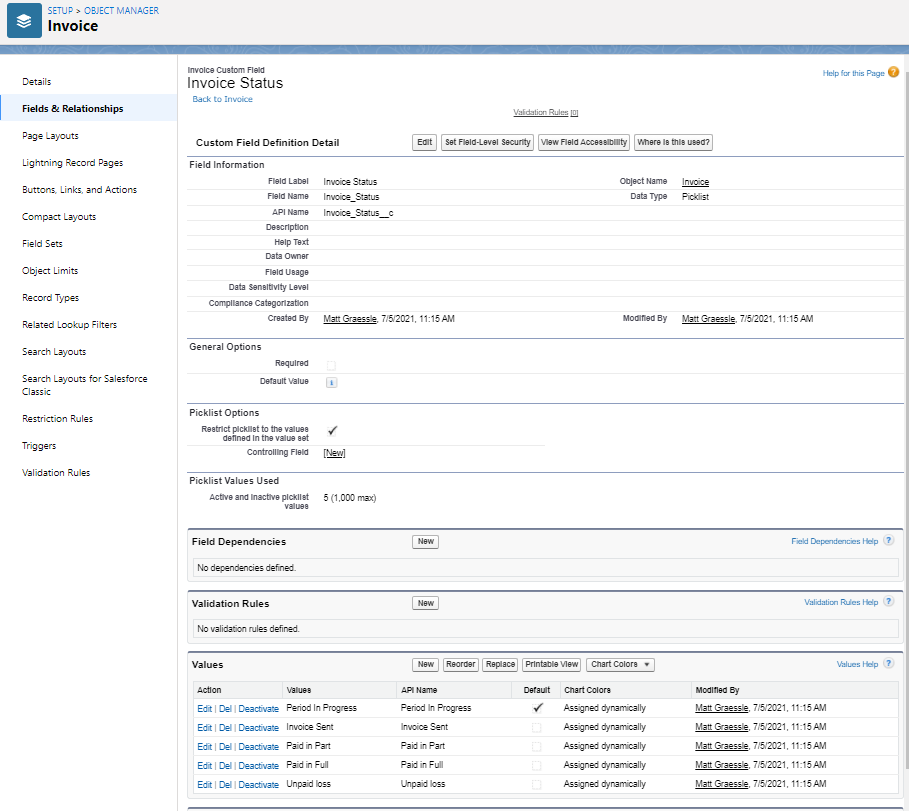
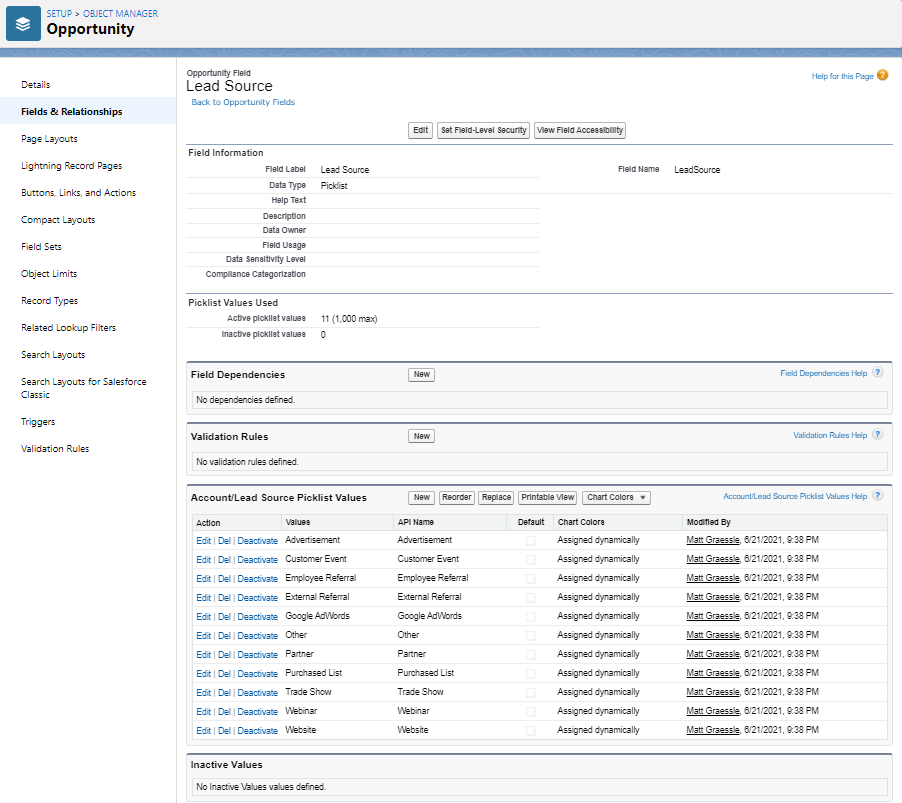
Values: this is the area where standard picklists are most similar to the custom version. Admins can add new values, reorder values and select a default option for the picklist. More on the default value below. Standard picklists also have the replace function and can use chart colors.
Inactive Values: just like custom, standard picklists have the option to retain inactive picklist values. This is useful when you want to de-clutter the list of choices, but aren’t ready to fully delete it.
Admin Fields: other administrative fields like Help Text, Description, and Field Usage work in the normal manner.
Picklist Fields: Differences between Standard and Custom Picklist Fields
Field Name and API: as mentioned above standard picklist fields come with an established name and API that cannot be modified.
Required: custom fields have the option to set as Required or not on the field level. Some standard picklist fields are required (such as Opportunity’s Stage field) and admins cannot remove this requirement. For other standard picklist fields that are not required by default, admins can make them required on a page layout or through a validation rule.
Default Value: a standard picklist enables the administrator to select a value from the list as a default. However, custom picklists also have an option to use a formula to determine a Default Value. This is not available for standard picklists.
Restrict Picklist to the Values Defined in the Value Set: for custom picklists, this checkbox determines if users can select something other than a value from the list provided. By default standard picklists only allow values from the value set.
Controlling Field: as mentioned above, picklists can be used together in a way that one picklist displays values dependent on the other (controlling) picklist. A standard picklist can be the controlling of a custom (dependent) picklist, but not the other way around.
Advanced Features
Picklists can be used in used for a few additional advanced features where the standard picklist behaves differently from custom versions.
Promote to Global Value Set: when making a custom picklist, the set of values may be useful in other areas. Perhaps the same set of values could be used on another picklist within the same object, or a corresponding field on another object. For example, an admin may want to add a custom picklist to the Lead object called “Zodiac Signs” that has a picklist of the different horoscope symbols. If converted, those values should carry over to the Contact object. Fortunately, the admin can make the picklist once, promote it to a global value set, and then use it again for the field on the other object. Unfortunately the values selected in a standard picklist field cannot be promoted to a global value set.
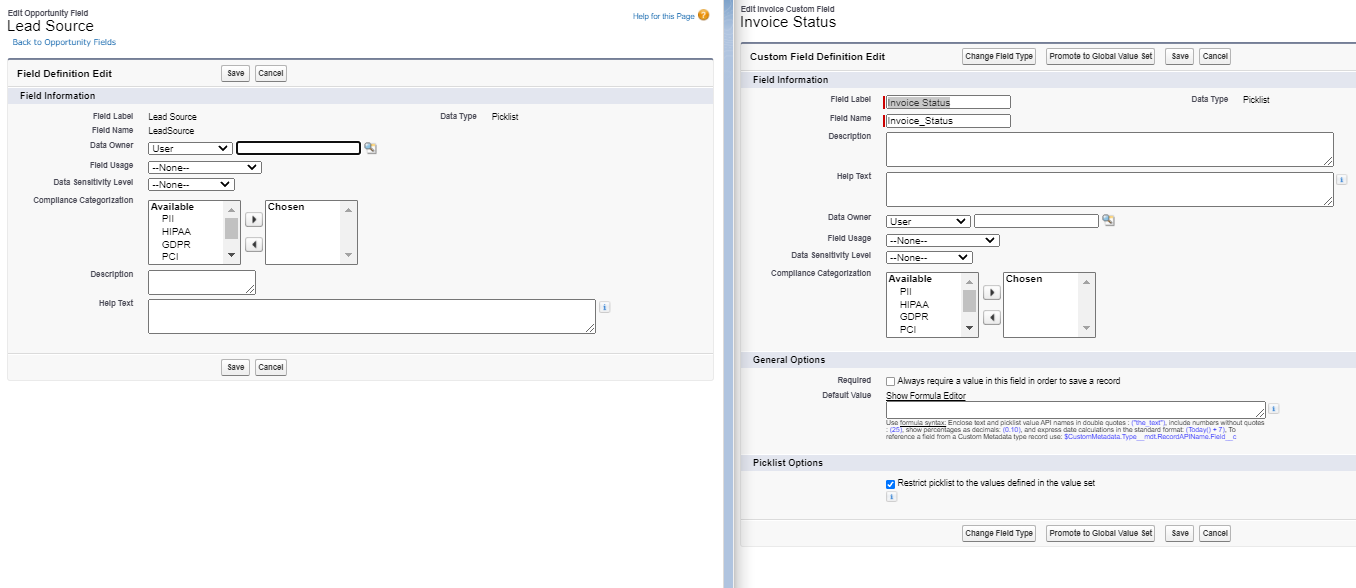
Standard Picklist (left) with reduced option compared to Custom Picklist (right)
Change Field Type: custom picklists can be changed to other field types like multi-select picklists, checkboxes, and text fields. Standard picklists cannot be converted to any other field type.
Common Standard Picklists
There are several standard picklist values out of the box with a new org. Let’s cover a few of the most commonly used:
Account and Lead Picklist Fields
Since Leads and Accounts work closely together, with many Lead fields mapping directly to Account fields, these picklists are often the same.
Account Source (API = AccountSource) + Lead Source (API = LeadSource): one of the most fundamental picklists for any Sales and Marketing organization. This goes hand and hand with Lead Source. In fact, Lead Source automatically maps to Account Source upon lead conversion. Use this field to segment where your business comes from.
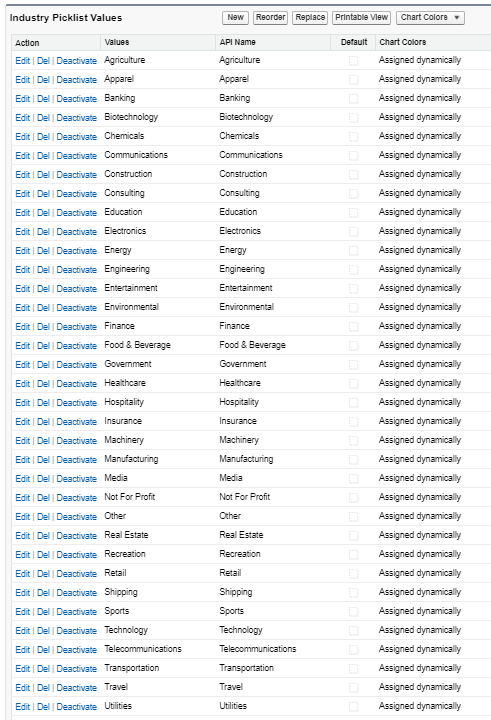
Industry (API = Industry): categorizes the account by industry sector. Prepackaged list is already lengthy, but can be added or reduced to fit your organizational needs. This is useful when looking at opportunity results by account industry.
Ownership (API = Ownership): refers to whether an account is publicly owned, private, subsidiary, or other.
Rating (API = Rating): used to designate the quality of the Account with values like Hot, Warm, and Cold.
Type (API = Type): identifies what type of account it is, such as Customer, Partner, Prospect, etc. Since organizations differ, this is one that is very difficult to make universal. The values they provide are a great starting point, but this is a good area to customize.
Opportunity Picklist Fields
Forecast Category (API = ForecastCategoryName): used in conjunction with Stage to categorize each opportunity for forecasting purposes.
Stage (API = StageName): this required picklist on the Opportunity objects is critical to much of the built-in functionality surround this object. Early stages include Qualification or Needs Analysis and continue throughout the sales process with stages like Negotiation, In Progress, and Close Won or Closed Lost. This feeds into forecasts and is fundamental to reviewing the sales process to determine where things are going right and where things are going wrong. In addition to adjusting the name, this picklist also has special features like Probability (set from 0-100%) and Forecast Category (i.e. Pipeline, Commit, etc).
Type (API = Type): not to be confused with Account Type, this refers to new or existing business.
Case Picklist Fields
Case Reason (API = Reason): Salesforce provides a list of reasons, although this is really just a starting point. Your own customer service team will have a set of values that capture the most common case reasons.
Case Origin (API = Origin): starting simple, we have Email, Phone, and Web as choices.
Priority (API = Priority): very simple: High, Medium, and Low. Like any standard picklist, we can add more options. This is useful for case escalations and assignments.
Status (API = Status): Cases can run through various stages just like Opportunities. Also like Opportunities, the various statuses also can be designated as “Closed”. If a status is not “Closed” it will be “Open” for reporting purposes.
Type (API = Type): like Opportunity and Account, the Case object has a Type picklist. Case Type can be items like “Problem” or “Question”.
Task Picklist Fields
Priority (API = Priority): like Cases, Tasks have Priorities like High and Normal.
Status (API = Status): this one is simple . . . just Open and Completed.
Type (API = Type): just like the other objects, Task has a standard picklist for Type. Standard values include Call and Meeting, for example.
There are many other standard picklists on objects like Campaigns, Products, and Work Orders, too. Understanding these standard picklist fields will help leverage the platform’s key features and maintain data in an organized and easily reportable format.
What’s New in 2025
- Greater support in Metadata API / Salesforce CLI for handling StandardValueSet, which stores values for many standard picklists.
- DevOps tools (like Gearset, Copado) display changes to StandardValueSet, GlobalValueSet, and custom picklists more clearly.
- Improved validation and dependency error messages when values are missing from record types, Flows, or validation rules.
- Stricter enforcement in production regarding default values and active dependencies.
Deploying StandardValueSet Metadata with the Salesforce CLI
Retrieve and Prepare Metadata for Deployment
Example with Salesforce CLI:
sfdx force:mdapi:retrieve -m StandardValueSet:LeadSource,StandardValueSet:CaseStatus -r retrieveDir
- Include RecordTypes in the package.
- Keep in mind that Change Sets don’t always capture deletions or inactive values.
Deploy to the Target Org
Example with CLI:
sfdx force:mdapi:deploy -d deployDir -u TargetOrgAlias
- Validate first in QA or Sandbox.
- Include dependencies (record types, layouts, rules).
- Monitor for errors related to invalid values.
Common Issues and Fixes
- Missing StandardValueSet metadata → verify the correct name.
- Deployment errors due to dependencies → include record types in the package.
- Inactive values still in use → review Flows, rules, and processes.
- Default value problems → ensure layouts and logic respect updated defaults.
Best Practices for Managing Picklist Values
- Keep It Clean: Regularly review and clean up picklist values. Too many options can overwhelm users and lead to inconsistent data entry.
- Document Changes: Ensure your team documents any changes made to picklists, especially when deploying to multiple environments. This improves visibility and reduces the risk of errors.
- Leverage Global Picklists: If you have similar picklist values across multiple objects, consider using Global Picklists to create a unified set of values that can be reused across multiple fields. This helps maintain consistency and simplifies updates.
Conclusion
Deploying standard field picklist values in Salesforce can be a straightforward process, but it requires attention to detail, especially when working across multiple environments. With the right tools and practices, you can ensure that your Salesforce org remains consistent and functional, empowering your teams to work more efficiently.
As Salesforce continues to roll out new features and updates, it's essential to stay informed about the latest deployment tools and best practices. In 2024, leveraging tools like Change Sets, Salesforce CLI, and Ant Migration Tool can streamline your deployment processes and help maintain a smooth user experience across environments.
For more advanced Salesforce deployment tips and guides, stay tuned for our upcoming posts!
Related Resources:

.webp)
.webp)