
Salesforce Queues explained
Got a huge number of leads coming in but facing problems distributing them among the sales execs? This might be because you don't know about the queues. So let’s see what they are.
.avatar-144.webp)
.webp)
What Are Salesforce Queues?
Given a list of records with no user or owner, a Queue is a location where records await processing by a group member. Salesforce queues are therefore used to share the workload between different members working under a single team. There is no limit to how many queues can be created in Salesforce, and they support Cases, Leads, Service contracts, and all Custom Objects in Salesforce.
- Multiple lumps make Salesforce Queues:
- Queue members
- Queue email (optional)
- Assignment rules
- Quick actions
Types of Salesforce Queues
.png)
Who Can Collaborate in a Queue?
Users who have access to queues are called Queue Members. Those with a higher role hierarchy can also access and take ownership of the records.
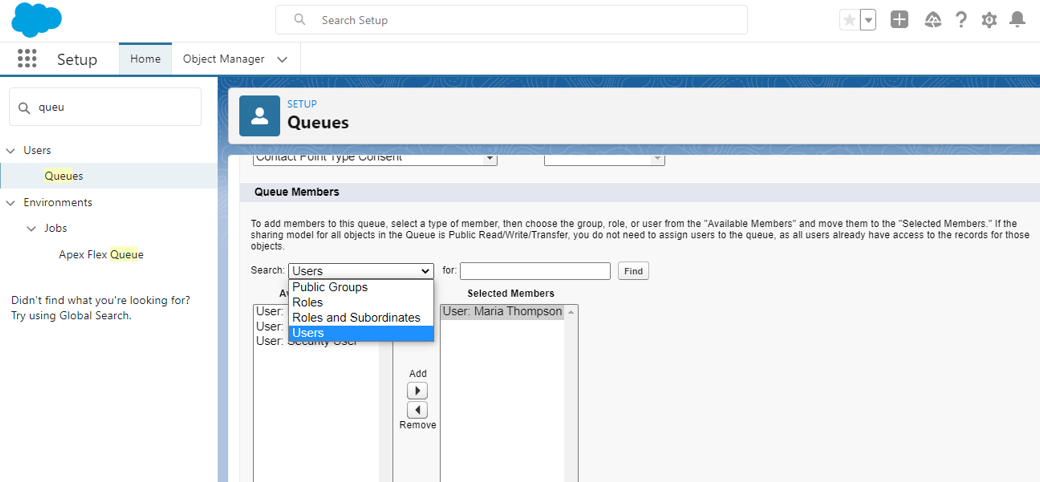
- Queue Members can be added in the following ways:
- Single users (one user at a time)
- Roles, Roles and Subordinates (multiple users at once)
- Public groups
How to add Records to a Queue?
There are two ways in which records can be assigned to any owner or user: manually by changing the owner field of the record or using assignment rules.
1. Assignment Rules:
Records can be assigned to the queue by creating certain specific criteria when the record is created. For example, Leads from India add to the “India Lead Queue.”
2. Manually:
We can assign records by going to the Record’s page and changing the “Owner” field. For example, change the lead owner to “India Lead Queue.”
How to create Salesforce Queues?
Part 1: Create a Queue
Steps to create Queue in Salesforce:
- Login to your Salesforce Account
- Go to Setup
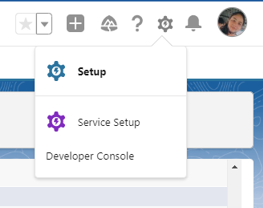
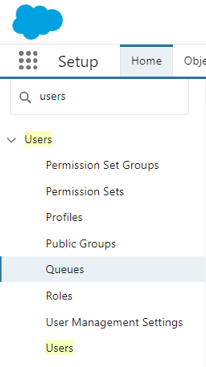
- In the Quick Find box, search for Queues. You’ll find them under Users.
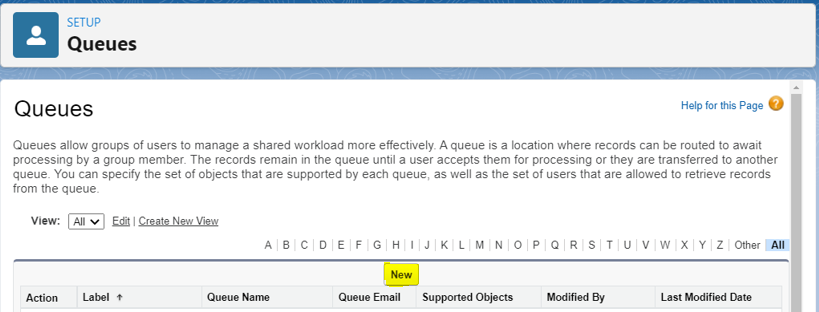
- Click the new button that is in the center of the page.
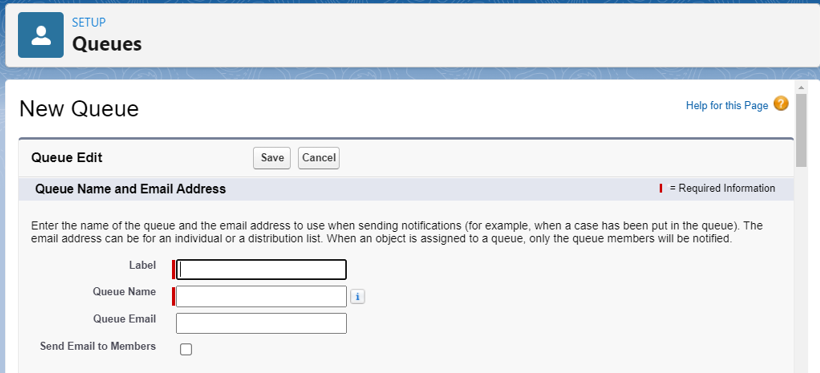
- Add the Label Name, Queue Name, and Queue Email to get notifications.
- In the Supported Object section, add the object you want to create the queue for.
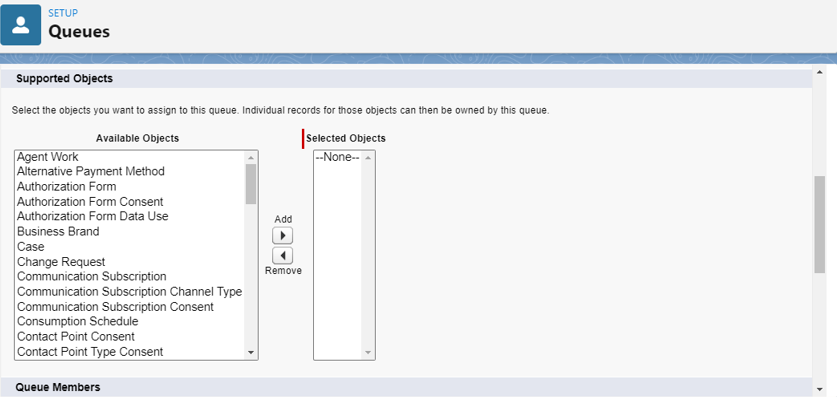
- In the Queue Members section, you can add either individual users, from public groups, or from Roles and Subordinates.
- Save the Queue.
Part 2: Assignment rules
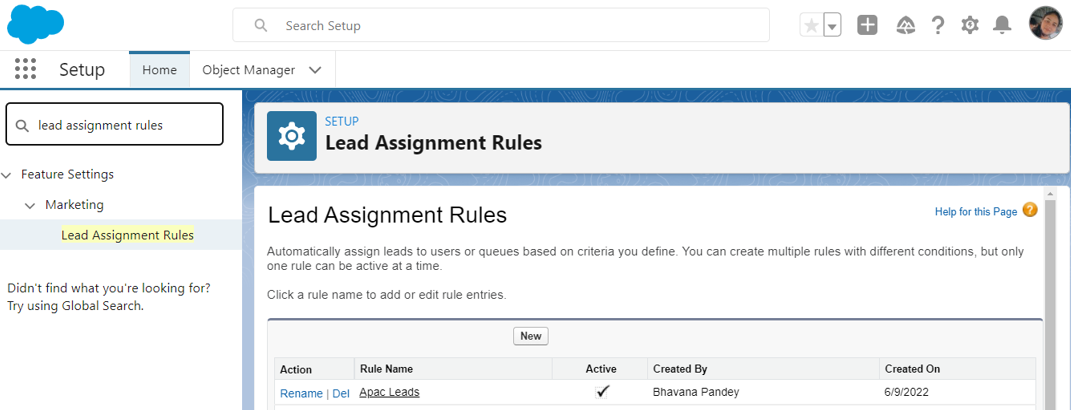
- In the Quick find box search for “Lead Assignment rules.”
- Click the new button that is in the center of the page.
- Add the Rule Name, check the active checkbox, and save it.
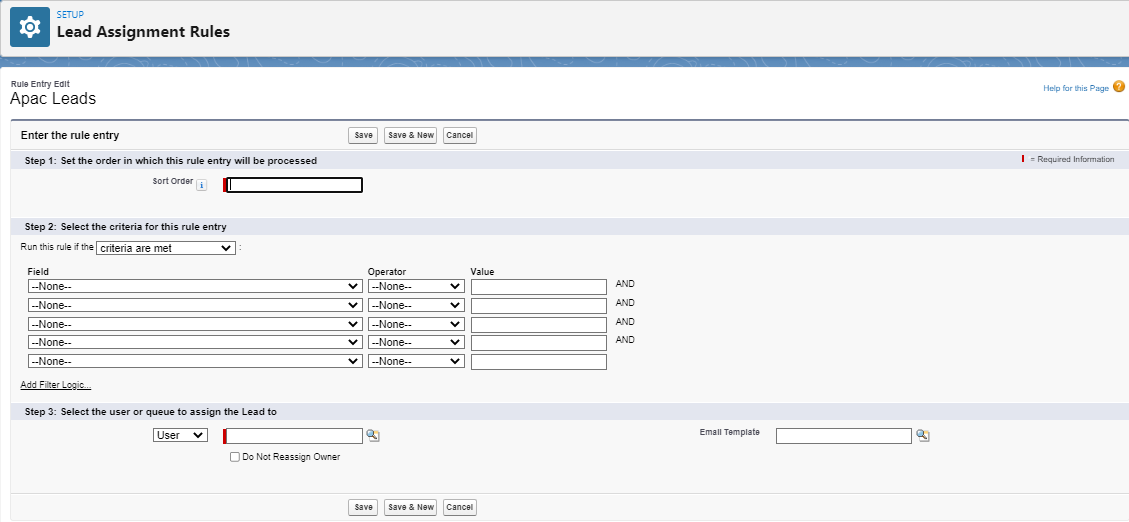
- In the Rule entries, click “New.”
- Add the sort order.
- Define your criteria.
- In the assignee part, select queue from the picklist and assign it to the queue you have created. Save the rule.
Part 3: Test it out
- Go to the Leads tab.
- Select the Apac Leads(all queues automatically create a list view)
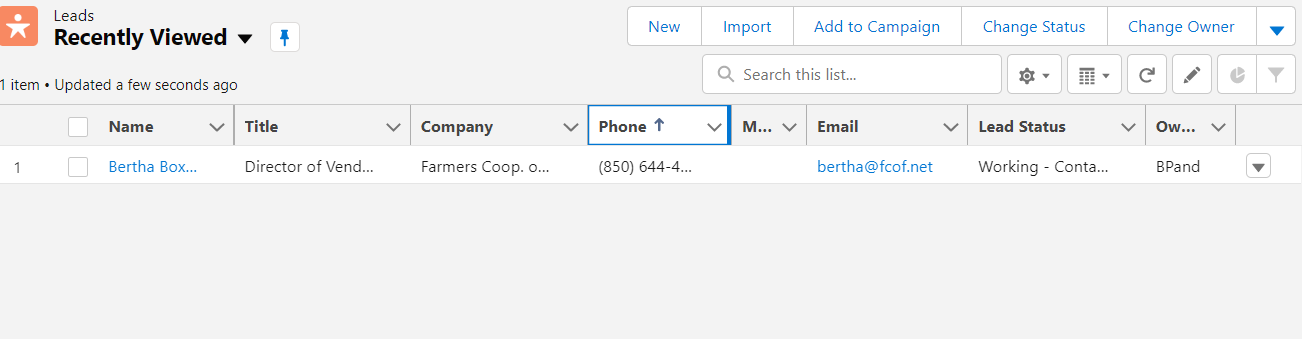
- Create Lead with the defined criteria.
Advantages of Salesforce Queues
- Helps teams manage Leads, Cases, Service Contracts, and Custom Objects.
- Reduces the workload for users and employees.
- Keeps the track that no lead or cases are left unattended.
- Helps to prioritize tasks.
- Helps manage work if still there are few members in a team.
Queue essentials to bear in mind
- We can create a single queue for multiple objects because queues are not bound to a particular object.
- Regardless of the sharing model, users should always have edit permission or access to the object in order to take ownership of the queue in which they are already a member.
- Admin, Users with “Modify All” permission for an object, and Users with “ Modify All data '' permission on their profile can view and take ownership of the records regardless of sharing model or membership in the queue.
- Queue members can be changed by Admins and Mange [object name] privileges.
- Before deleting any queue, reassign its records to another queue or users and remove it from assignment rules.
Though Queues might be a minor feature provided by Salesforce, it greatly impacts business activity. Using queue is an intelligent way to work, so start learning and extending queues in your organization today and reduce your team's workload.
5 Things You Should Know About Salesforce Queues
1. Queues are an excellent way to handle team-based work & backup responsibilities
If you have a scenario where more than one person might be capable of responding to a customer inquiry or handling any given piece of work, Queues are probably the first place that your mind should go. Especially in Salesforce orgs with sharing restrictions in place, Queues give all Members access to the records owned by the Queue and allow any of them to accept ownership to let the others know that they will not need to focus on it.
Enter another scenario, where your primary process owner goes out of the office unexpectedly and another user will need to serve as backup to avoid interruption. Queues will allow you to make this transition seamlessly, especially when sharing restrictions are in place. Depending on how your work is structured, you might do something like send all Cases of a particular type to a particular Queue with three Members. The Queue can even maintain ownership as the primary user works on open items, but upon closure you could assign the Case to the running user to avoid any single user owning too many records.
2. Queues work well with assignment rules & Omnichannel
Particularly in the realm of Service Cloud, Queues can be used in conjunction with Case Assignment Rules and Omnichannel Routing to handle the possibility of different individuals working on different types of action items. Have ten different Case record types, all of which are serviced by different business units? Create a Queue for each and use assignment rules to land them in the appropriate places. Want to leverage Omnichannel tools like assigning a new record to the Most Available service agent, but need to have a fall back if the logic fails to identify a single user? Create a general Queue as a last resort for records that don’t get assigned elsewhere.
3. Queues work well with email notifications
Even if only a single person is responsible for a certain type of work, Queues can be useful for notifying stakeholders when there is a new item requiring action. Are you the CEO of a small company that wants to get a feel for the volume of customer inquiries submitted via your new website? Create a Queue, add yourself as a Member along with the employee that will handle the inquiries, and you will also receive the email stating there was a new submission. Salesforce even has an out of the box template available as a starting point.
4. Queues work well with escalation rules
Another scenario where Queues can be useful is when a record (Case using standard Escalation Rules, or otherwise) might need to be brought to the attention of management. Your organization may have a variety of situations where intervention would be more beneficial to the customer experience, so creating a manager Queue and assigning it as the new owner upon escalation criteria being met will keep the appropriate parties in the know about potential issues. As an example, if a Case has been open for thirty days, perhaps you would like to reassign it to a level two support group for a more efficient resolution. The level two Queue Members can then take ownership of the record after they have been notified of its urgency.
5. Queues and Queue Members qualify as metadata
While this is not such an important point for standard Queue usage, if you plan to build automation around Queues and Queue Membership, this is a critical architectural distinction. Salesforce will prevent you from performing an insert, update, or delete (DML) operation on one of those two tables and a standard or custom Salesforce object in the same transaction.
To work around this error, which is called a mixed DML operation, you must separate out your DML operations on the metadata in one transaction and the DML operations on the data in another transaction. This is something that traditionally only could be done with the help of complex Apex coding methods or inefficient scheduled actions in Process Builder, but with recent enhancements to Flow Builder, mixed DML is more accessible than ever. On record-triggered flows, you can launch an additional asynchronous path, which can handle metadata changes as a separate transaction.
You are also able to define more advanced Platform Events, which qualify as data for the purposes of DML, and build event-triggered flows that perform DML operations on metadata in a separate transaction. Ultimately, the specific design you choose for your own Salesforce org will depend on overall requirements, existing architecture, and what your administrative team feels most comfortable maintaining over time.
As a final tip which was briefly alluded to, keep the principle of data skew in mind with Queue ownership! If your Queue is going to be owning many records at once, you may experience lag or other issues with things like sharing recalculations or other operations. This is no different than assigning large volumes of records to an individual user. The general rule of thumb is that no single owner (or parent record) should have more than 10,000 of the same type of child record, which, while only a consideration at high volumes, can easily be prevented with a clever queue structure.

.webp)
.webp)